

Configuration transfer
how-to Steps to accomplish one task
On this page
- Prerequisites
- Export configuration manually
- Import configuration manually
- Add a saved instance
- Compare environments and sync configuration
- Verify the result
- What this changes
- If something goes wrong
Configuration transfer moves configuration - rules, vocabularies, streams, export targets, glossaries, clean projects, deduplication projects and manual data entry projects - between CluedIn environments, such as from staging into production. You can export a package and import it manually, or save a connection to another environment and ship configuration to or from it directly over HTTPS, with a preview of what will change and a live comparison of each environment’s stats.
Prerequisites
- You must be signed in to CluedIn with administrative permissions (
admin.tenantmanagement, at Accountable, is required to start an export or import, add or edit a saved instance, or run a sync; Informed is enough to view the lists). - To connect to another CluedIn environment for a direct HTTPS sync, you need an API token generated on that other environment, with enough claims granted to run the export/import you intend to perform there.
Export configuration manually
- Open Administration > Configuration transfer > Exports.
- Select Start export. CluedIn packages the current configuration into a zip archive.
- Once the export’s state shows Completed, select Download on its row to save the package.
Import configuration manually
- Open Administration > Configuration transfer > Imports.
- Select Import configuration and choose a previously exported package (
.zip). - The import starts immediately and appears in the list with its state, updating as it progresses.
A manual import does not reprocess existing records against newly imported rules. Re-run processing afterward if the imported configuration should apply to data that was already there.
Add a saved instance
A saved instance is a connection to another CluedIn environment - its base URL and an API token for it - that lets this environment ship configuration to or from it directly, without a manual download/upload step.
- Open Administration > Configuration transfer > Instances.
- Select Add instance.
- Enter a Display name (for example,
Production) and the environment’s Base URL (for example,https://org.example.com). - Paste an API token generated on that environment. CluedIn uses it to authenticate the HTTPS calls it makes on your behalf - it is never shown again once saved.
- Select Add instance to save the connection.
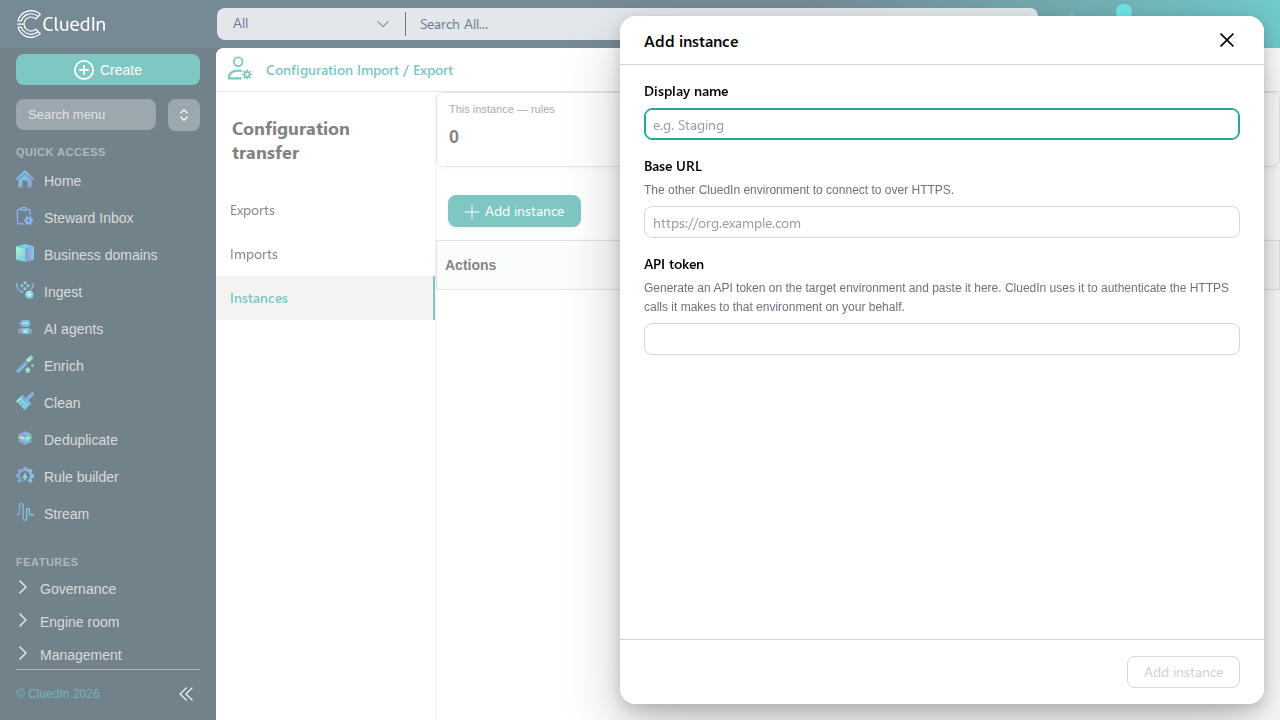
To change a saved instance’s display name or base URL, or replace its token, select Edit on its row; leave the token field blank to keep the one already saved. Select Delete to remove the saved connection - this only removes the saved connection itself, it does not change any configuration on either environment.
Compare environments and sync configuration
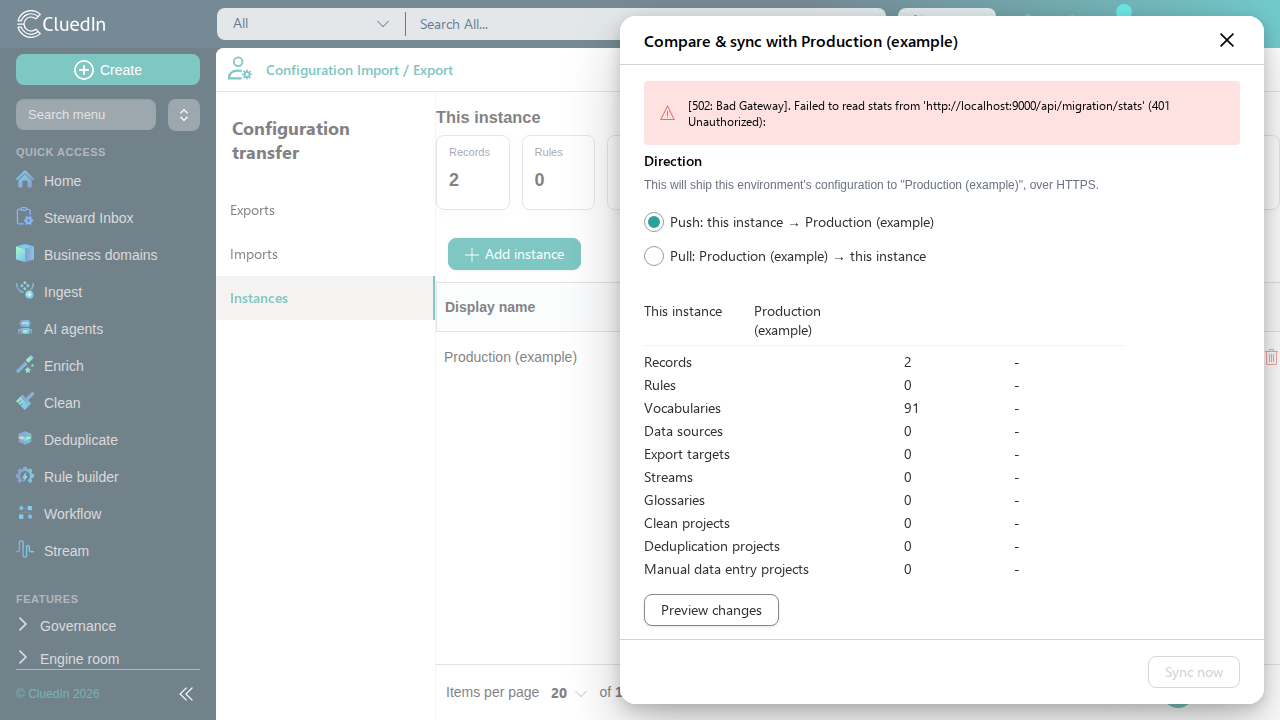
- On the Instances list, select Compare & sync on the row for the environment you want to compare against or sync with.
- Choose a Direction:
- Push: this instance → <name> ships this environment’s configuration to the other one.
- Pull: <name> → this instance ships the other environment’s configuration into this one.
- Review the comparison: total records, plus a count for every configuration content category (rules, vocabularies, data sources, export targets, streams, glossaries, clean projects, deduplication projects, manual data entry projects) - fetched live over HTTPS for both This instance and the selected environment, side by side.
- Select Preview changes to see, per content category, how many items the sync would transfer and how many already exist on the receiving side.
- Select Sync now and confirm. CluedIn transfers the configuration and imports it on the receiving side.
Verify the result
- A saved instance appears in the Instances list immediately after it is added, edited or removed.
- A sync shows a spinner while it runs, then an explicit success or failure state with the outcome: on success, a summary of the items the receiving side imported; on failure, an actionable error message (for example, that the saved base URL or API token could not be reached or was rejected).
- Re-running Preview changes after a sync reflects the new state - items that were previously new now show as already existing on the receiving side.
What this changes
- Adding, editing or removing a saved instance only changes this environment’s own list of connections. It does not contact the other environment.
- Preview changes only reads the package and compares it to the target - it does not change anything.
- Sync now imports configuration into the receiving environment. Like a manual import, it does not reprocess existing records against newly imported rules.
If something goes wrong
- “Could not reach <url>” or a connection error - confirm the saved base URL is correct and reachable over HTTPS from this environment, and that the other environment is running.
- An authentication/authorization error from the other environment - the saved API token is missing, expired, or does not have enough claims granted for the export/import it needs to run there. Generate a new token on that environment (see Generate an API token) and update the saved instance with it.
- A sync’s preview or result looks unexpected - the comparison matches items by name, not by id, within each content category. Two items with the same name in a category are treated as the same item.